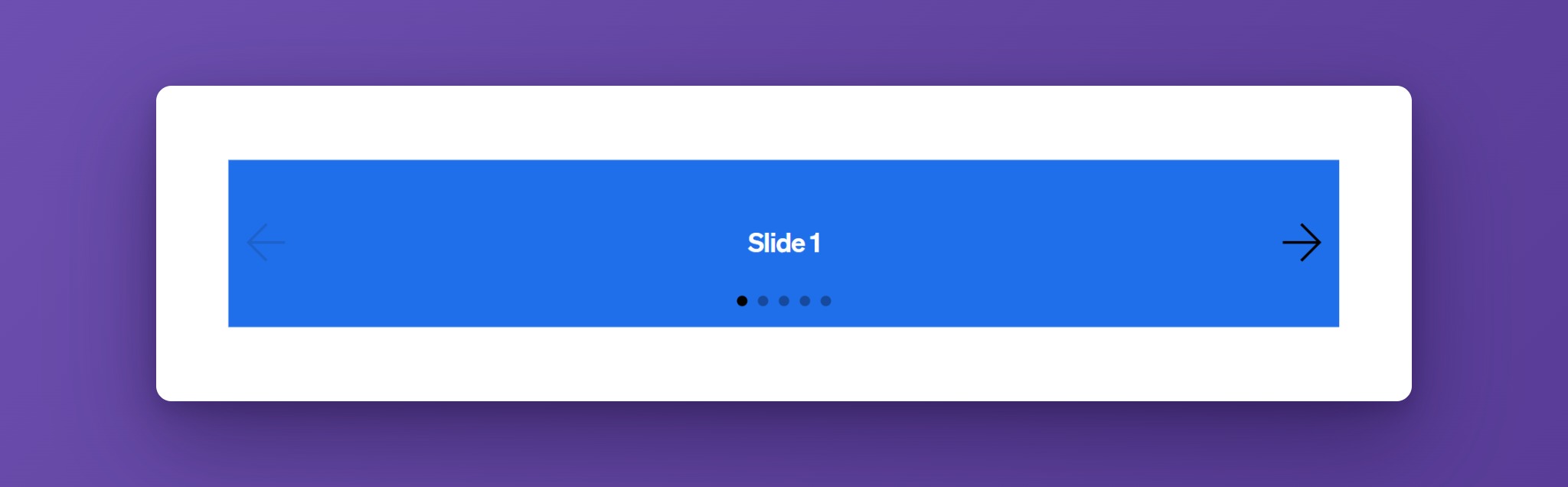
The Frames Slider shows a row of slides that visitors can move through with arrows, dots, a swipe, or the keyboard. It is built on Splide.js, a light and accessible slider library, and gives you its options as settings in the builder.
Use it for testimonials, product images, logos, card rows, or any content that is better when it can be browsed one slide at a time. Frames offers two elements that work together:
- Frames Slider is the slider itself, with its slides, arrows, and dots.
- Frames Slider Controls are extra buttons or a progress bar that you can place anywhere on the page, for example below the slider or next to a heading.
Activating the Slider
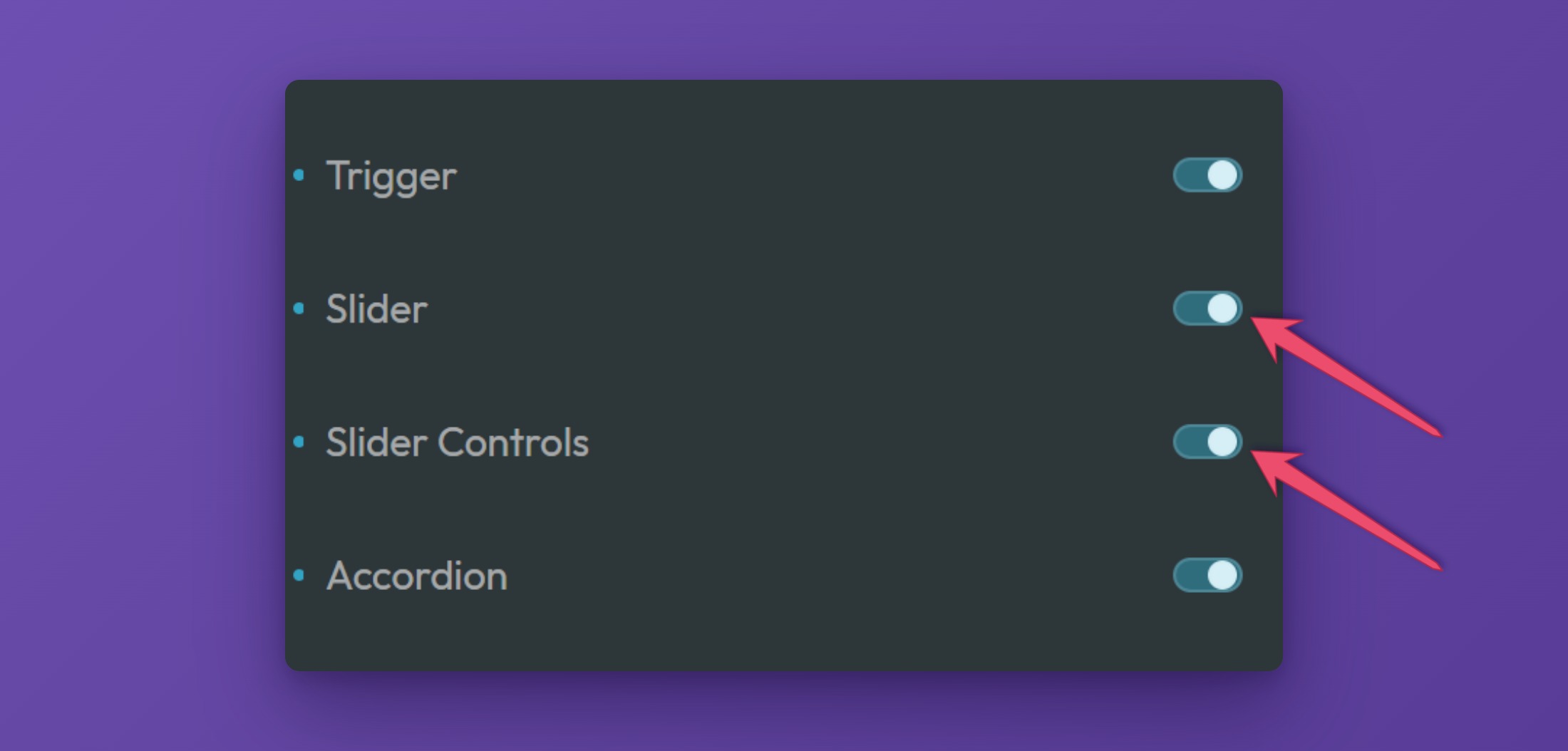
To use the Frames Slider, make sure it is switched on in the ACSS dashboard. Open the dashboard in the builder, go to the Frames tab, and expand the Components panel. Switch on the Slider.
Adding the Slider to a Page (Bricks)
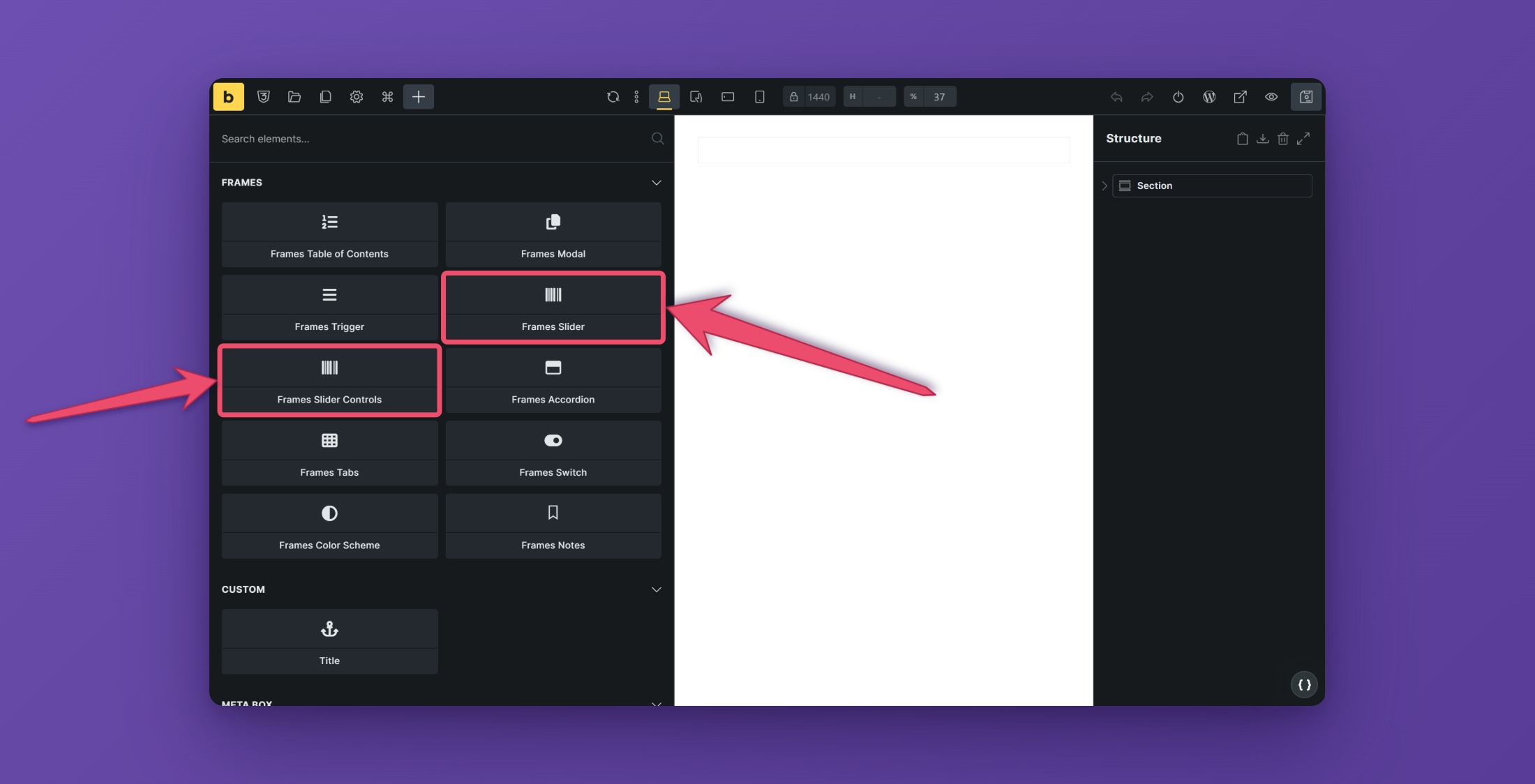
Open the builder, click the plus sign to add a new element, search for “Slider”, and choose Frames Slider from the Frames section. Bricks has its own Slider element too, so pick the one from Frames.
Every direct child of the slider is one slide. A slide can hold anything: a heading, an image, a card, or a whole layout. To add a slide, duplicate an existing one. To fill a slider from your posts, turn on the query loop of the slide, and one slide is created for each result.
Options
Open the Options group of the element.
Layout
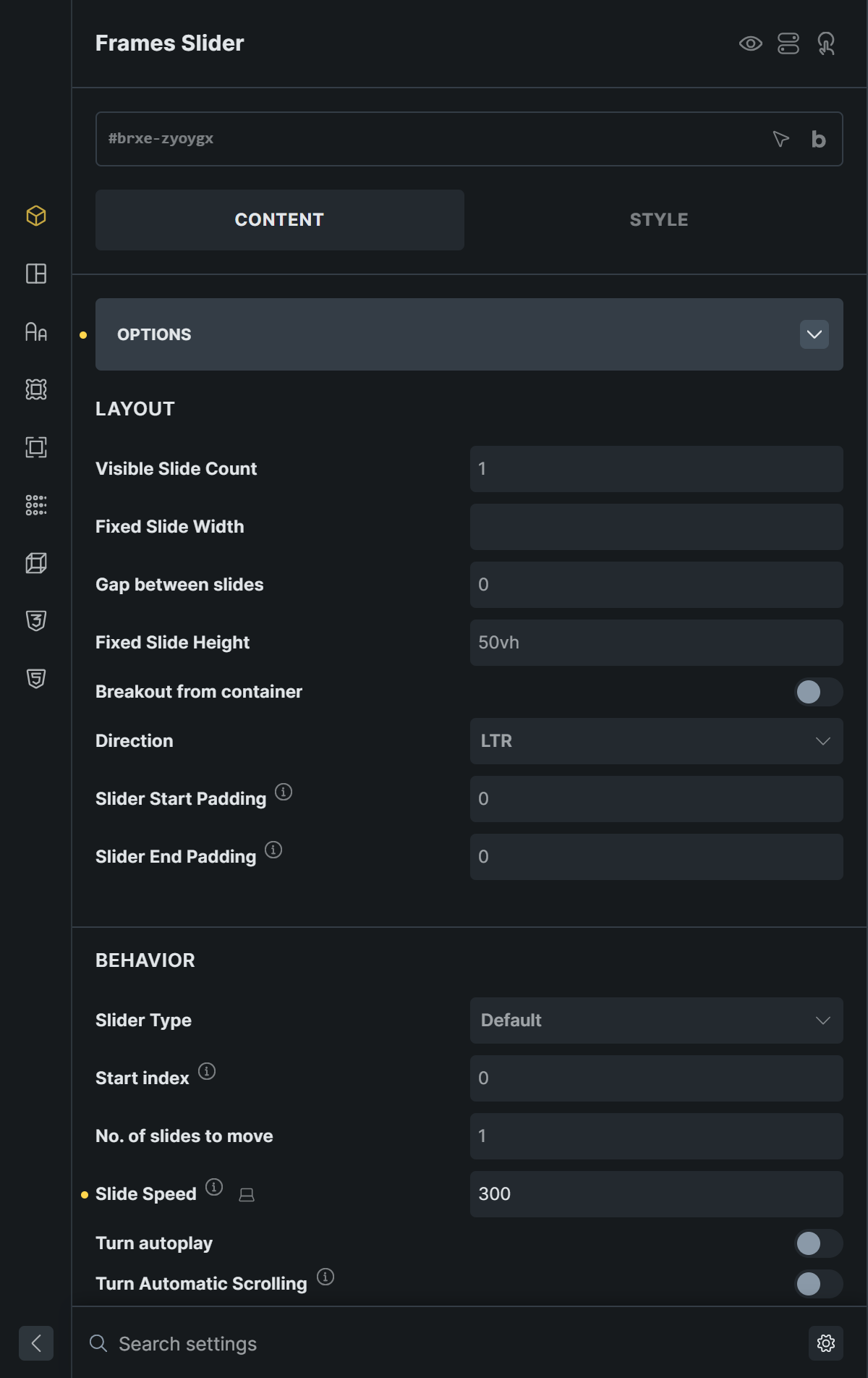
- Visible Slide Count sets how many slides are visible at the same time. The default is 1.
- Which slide to focus appears when more than one slide is visible. Enter a number, or the word
centerto keep the active slide in the middle. - Fixed Slide Width gives every slide a fixed width, for example
300px, instead of dividing the available space. - Gap between slides sets the space between slides.
- Fixed Slide Height gives every slide a fixed height.
- Breakout from container lets the slider run past the edge of its container. Use Clip to container side to decide on which side the slides are cut off.
- Direction switches between left to right, right to left, and top to bottom. A vertical slider needs a Slider Height.
- Slider Start Padding and Slider End Padding add space before the first and after the last slide inside the slider. For a horizontal slider this is the left and right side.
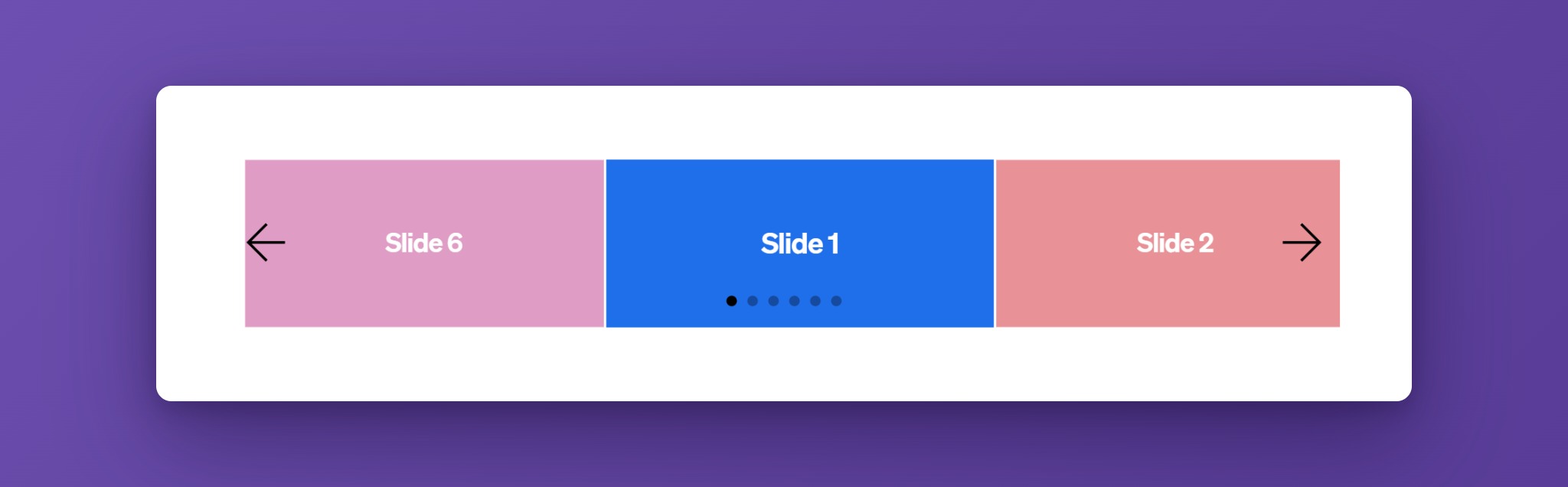
The values for Visible Slide Count, Gap between slides, and other layout settings can be set per screen size. Use the breakpoint icon next to the setting to give phones, for example, one slide and tablets two.
Behavior
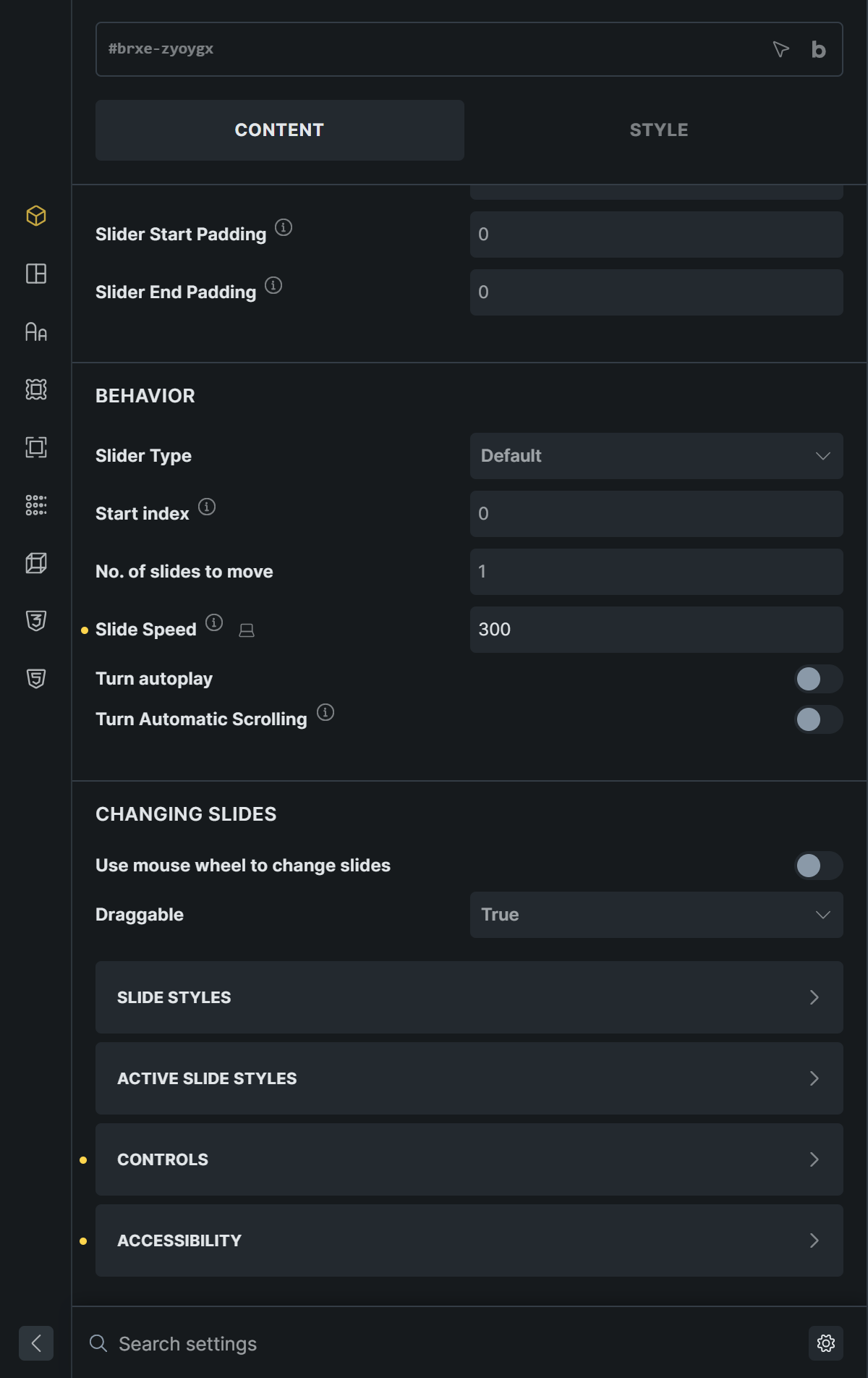
- Slider Type sets how the slider moves. Slide moves from one slide to the next and stops at the end. Loop goes around endlessly. Fade crossfades between slides and shows one slide at a time.
- Start index sets the first slide shown. The first slide is
0. - No. of slides to move sets how many slides move with one click on an arrow.
- Slide Speed is the time in milliseconds a slide takes to move. It is set to 300 by default.
- Rewind jumps back to the first slide when a visitor goes past the last one, on a Slide-type slider. Rewind by drag does the same when dragging, and Speed in ms sets how fast the rewind is.
- Turn autoplay and Turn Automatic Scrolling start the automatic movement (see below).
- Use mouse wheel to change slides lets visitors move the slider with the mouse wheel. Release mouse wheel hands the scroll back to the page at the first and last slide.
- Draggable sets whether visitors can drag or swipe the slides. Enable drags to the next slide. Disable turns it off. Free lets slides be dragged to any position, and Snap then moves them to the nearest slide when released.
Autoplay
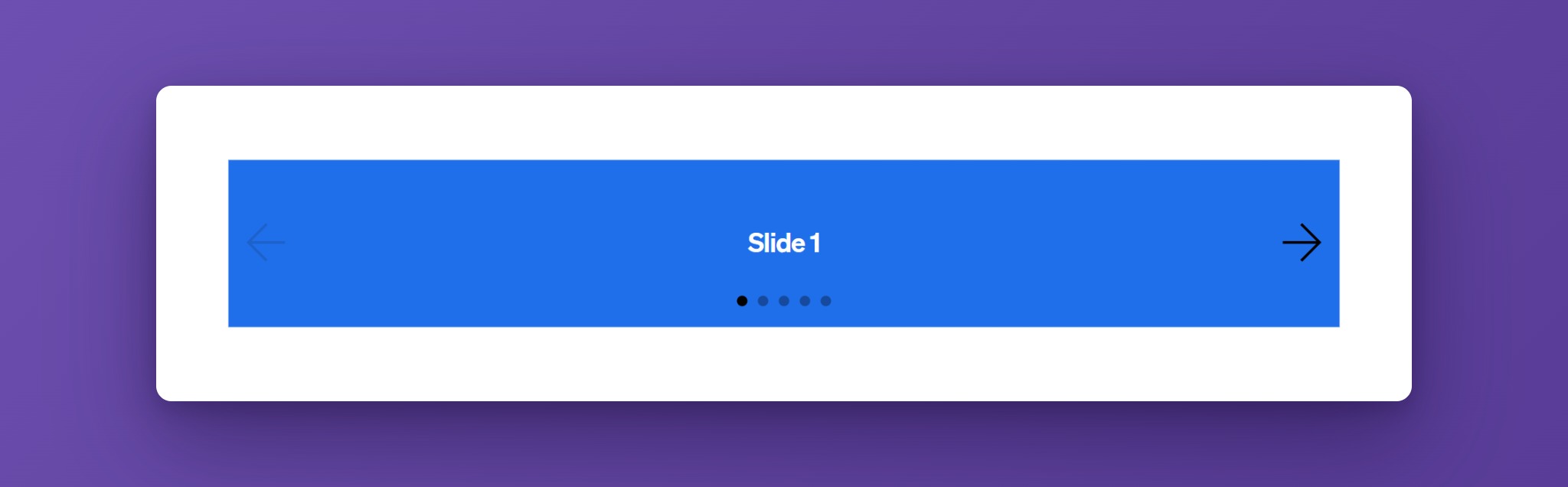
Switch on Turn autoplay to move the slides automatically. An Autoplay group appears with these settings:
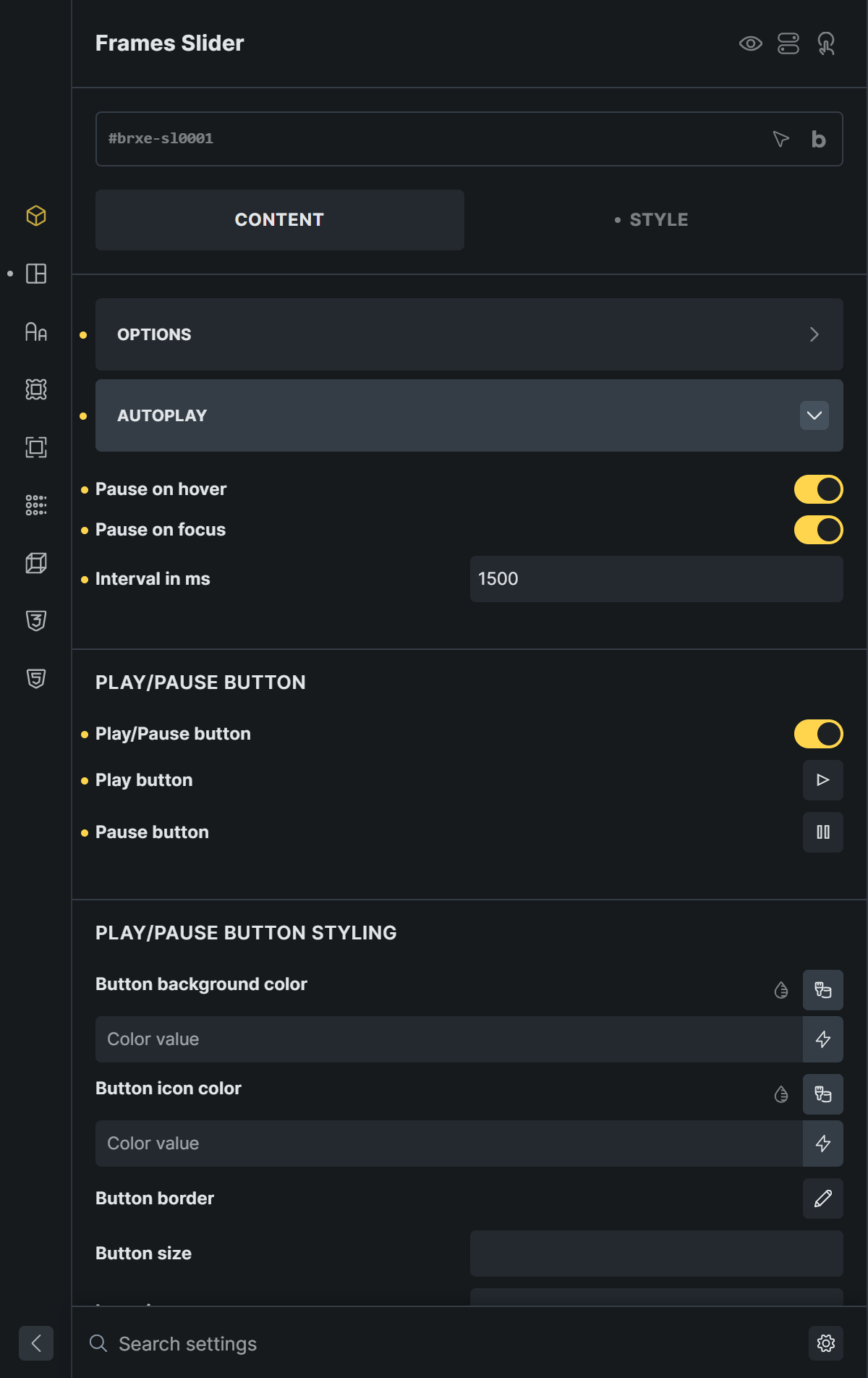
- Pause on hover and Pause on focus stop the movement while the mouse is over the slider or while a part of it has the keyboard focus.
- Interval in ms is the time each slide stays on screen.
- Play/Pause button adds a button that lets visitors stop and start the movement. You can choose the Play button and Pause button icons and style the button: background, icon color, border, size, icon size, and its position.
- Show progress bar adds a bar that fills while a slide is shown. Set its Height and Color.
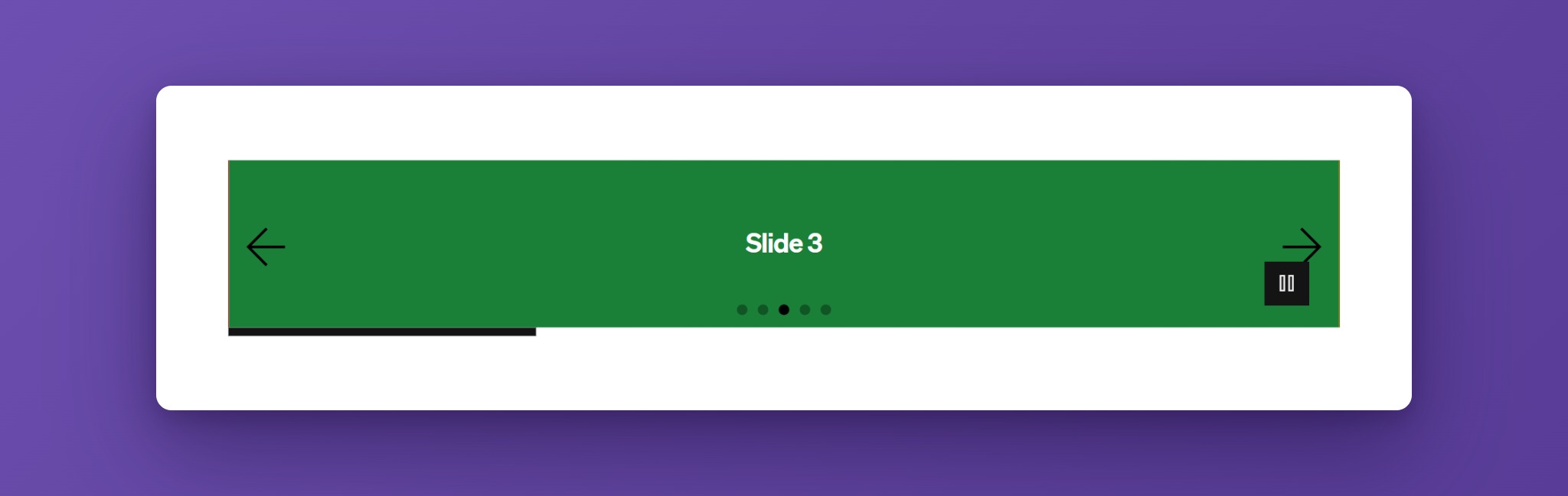
A play or pause button is important for accessibility. Visitors must be able to stop content that moves on its own.
Auto Scroll
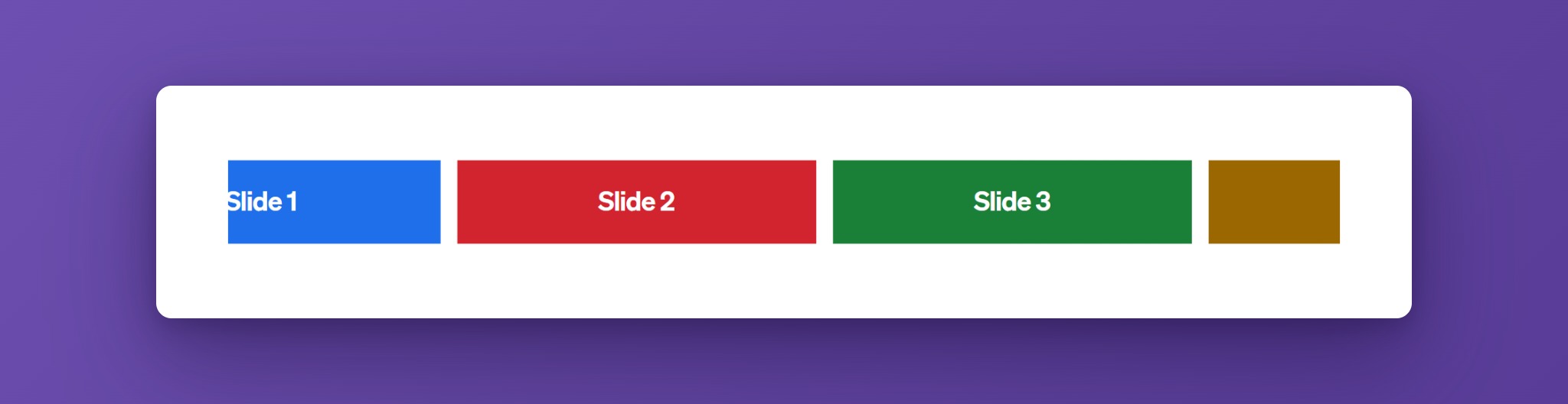
For a continuous, slowly moving row, for example a logo ribbon, switch on Turn Automatic Scrolling. It needs the Loop slider type. An Auto Scroll group appears:
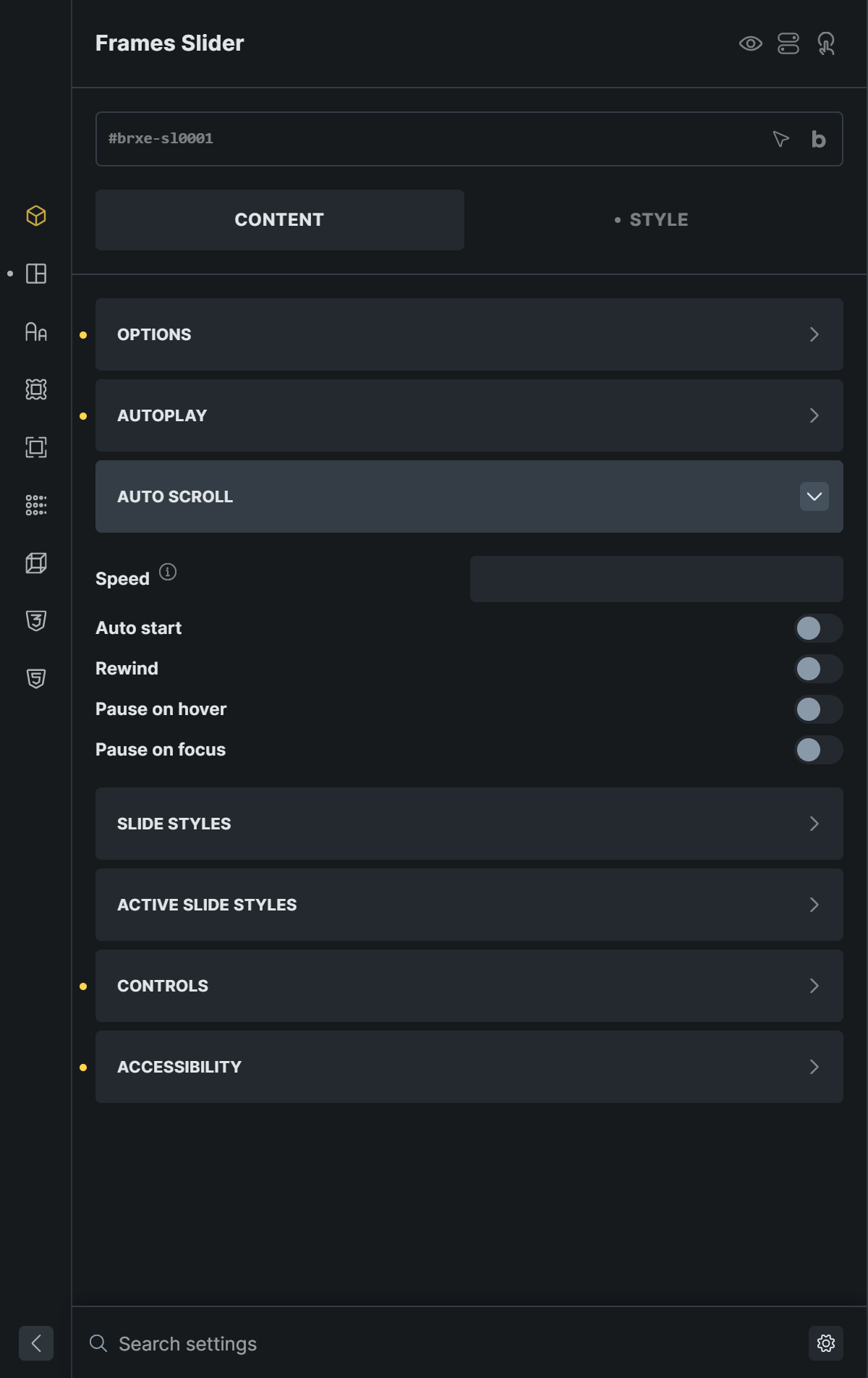
- Speed sets how fast the row moves.
- Auto start starts the movement when the page loads.
- Rewind goes back to the start at the end.
- Pause on hover and Pause on focus stop the movement.
Slide Styles and Active Slide Styles
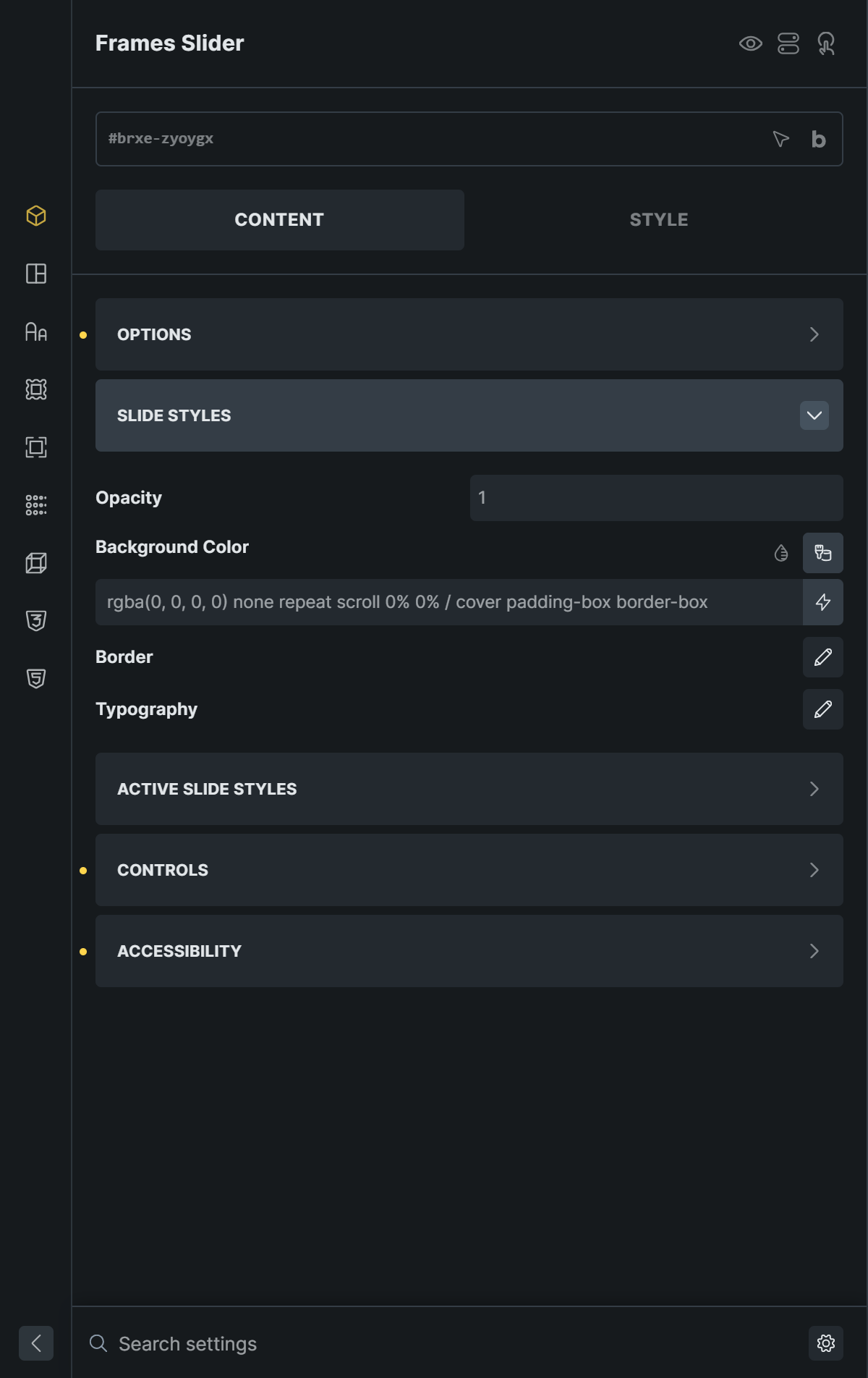
Slide Styles set the Opacity, Background Color, Border, and Typography of every slide.
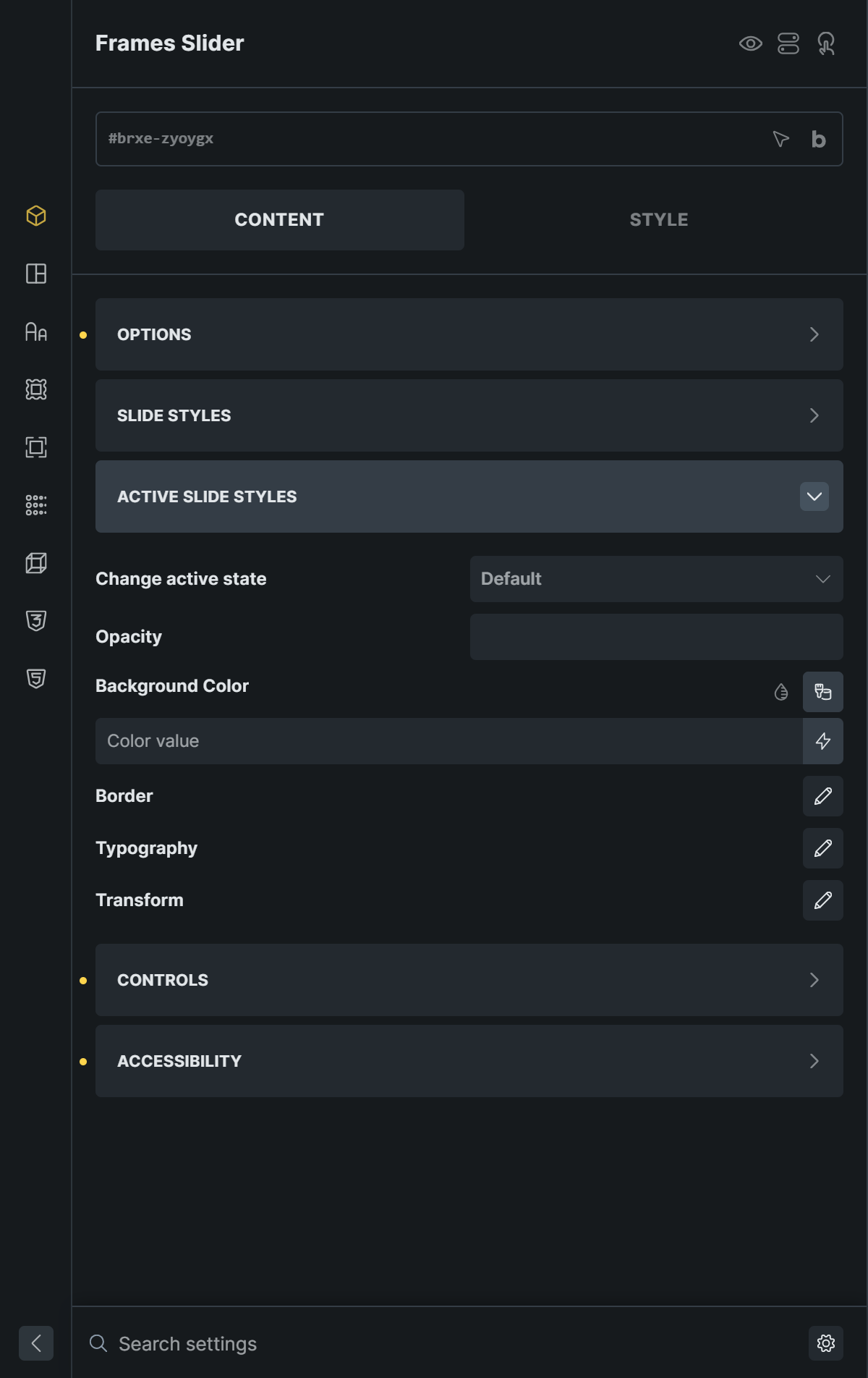
Active Slide Styles do the same for the slide that is currently in the middle or in focus. Switch on Change active state first. You can also set a Transform, for example to make the active slide a little bigger than the others.
Controls
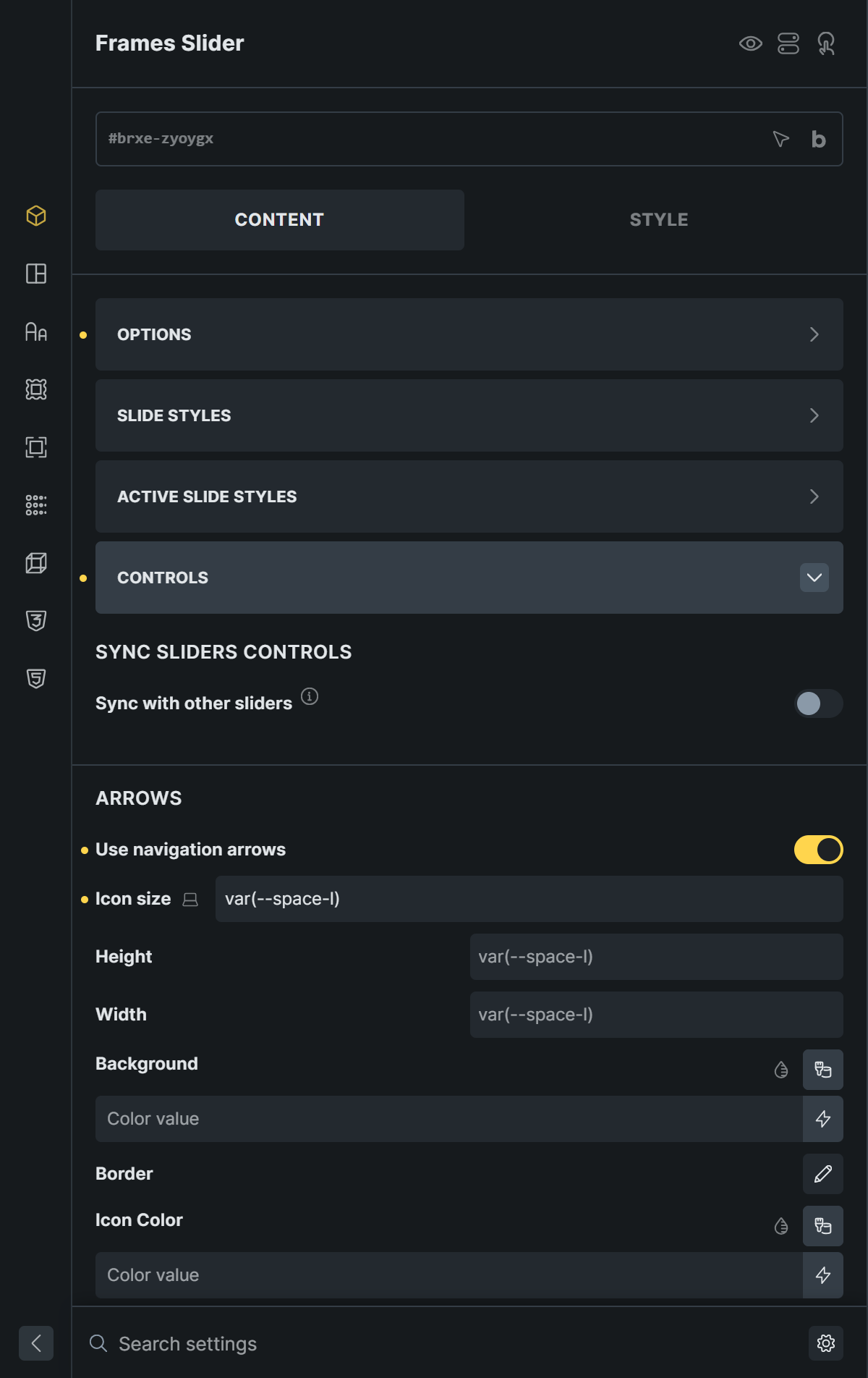
The Controls group holds the settings for the arrows, the pagination dots, and the connection to other sliders.
Sync Sliders
Use Sync with other sliders and Slider Name to Sync Sliders to connect two or more sliders with the same name, so that they move together. A common use is a large image slider with a second, smaller slider below it that works as navigation. Turn on Use slider for navigation on the small slider. The same name also connects a slider with Frames Slider Controls elements (see below).
Arrows
Switch Use navigation arrows on or off. When on, you can set the Icon size, the Height and Width of the arrow buttons, and their Background, Border, and Icon Color. The Disabled group styles the arrow at the start or end of a non-looping slider, where it has no further slide to go to. Both arrows have their own icon, and their Top, Right, Bottom, Left, and Translate x,y values set where they sit on the slider.
Pagination Dots
Switch Show on to display the dots below the slider. You can set their Margin, Height, Width, Color, and Border, and the same values for the Active dot. Position moves the dots over the slides. The dots are static in the builder preview and appear on the page.
Accessibility
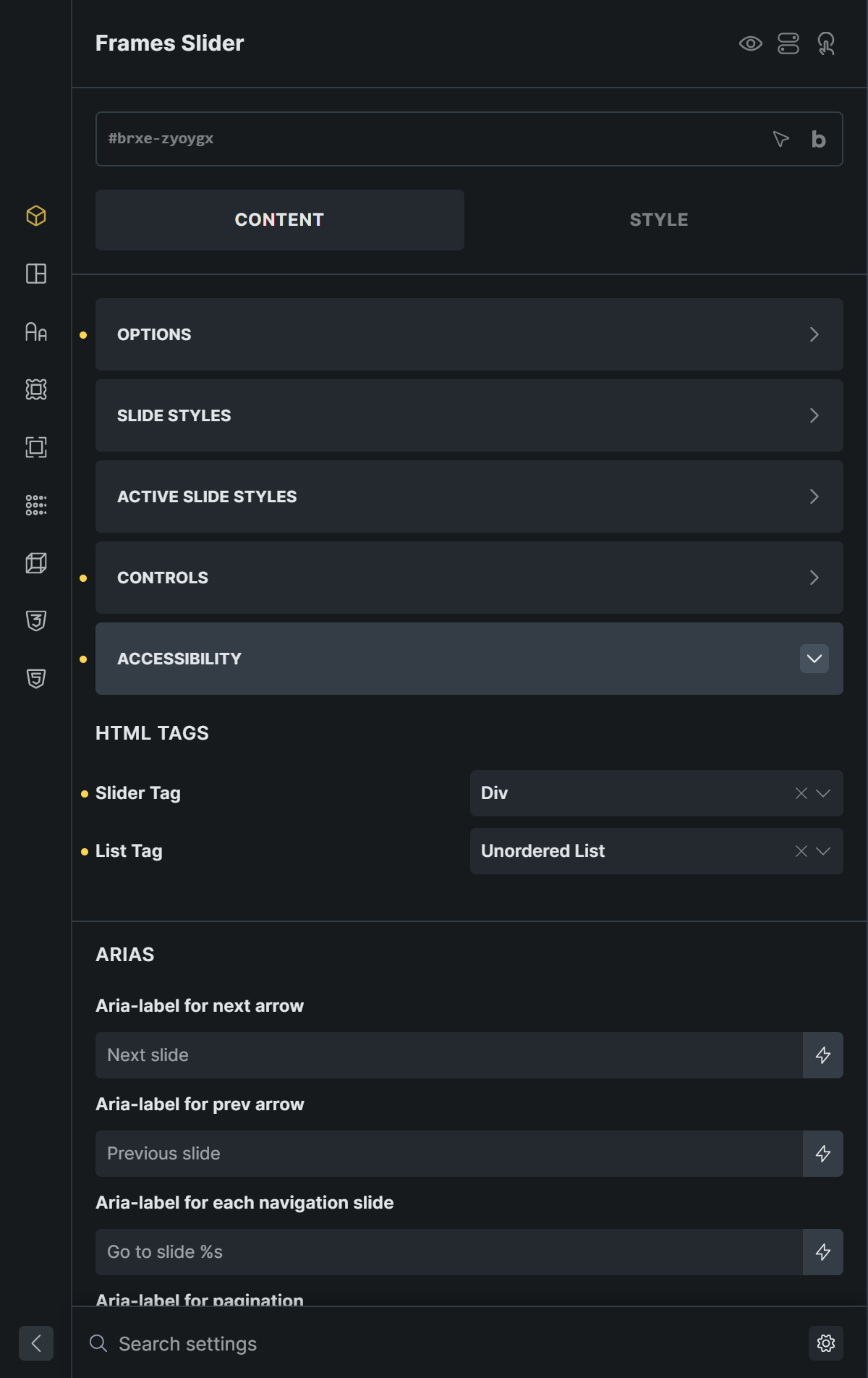
- Slider Tag sets the HTML tag of the slider:
div(default),section,main,aside,header,footer,article,nav, orfigure. - List Tag sets the tag of the slide list:
ul(default),ol, or a custom tag. - The Aria settings let you change the texts that screen readers announce: the labels of the next and previous arrows, the pagination, each slide, and the description of the slider. The defaults are in English, so translate them for pages in another language.
These keys work:
| Key | Action |
|---|---|
| Tab, Shift+Tab | Move to the arrows, the pagination dots, the play/pause button, and focusable content inside the slides. |
| Enter, Space | Press the focused arrow, dot, or button. |
| Left Arrow, Right Arrow | Go to the previous or next slide. By default this works anywhere on the page, not only while the slider has the focus. |
The arrows are real buttons with a name. Slides are announced with their number (“1 of 5”). The slider carries the description “Carousel”.
Frames Slider Controls
Add Frames Slider Controls from the Frames section of the element list to put the slider buttons somewhere else, for example next to a heading or below the slider.
- Give the slider a name in Sync with other sliders, for example
news, and switch the setting on. - Add the Frames Slider Controls element.
- In Slider Name, enter the same name,
news. - In Use, choose what the element shows.
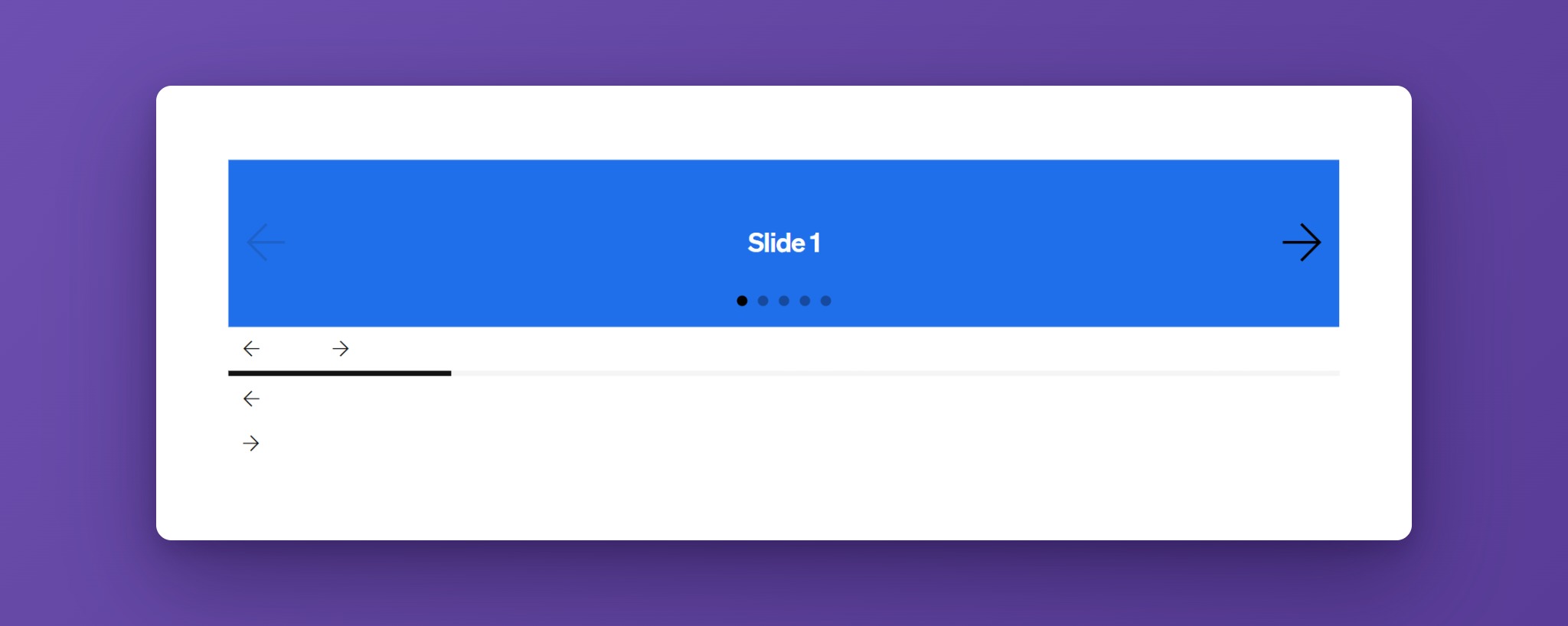
Use has four choices: Previous and Next Button, Previous Button, Next Button, and Progress Bar.
Arrows
The Arrows group is shown for the three button types.
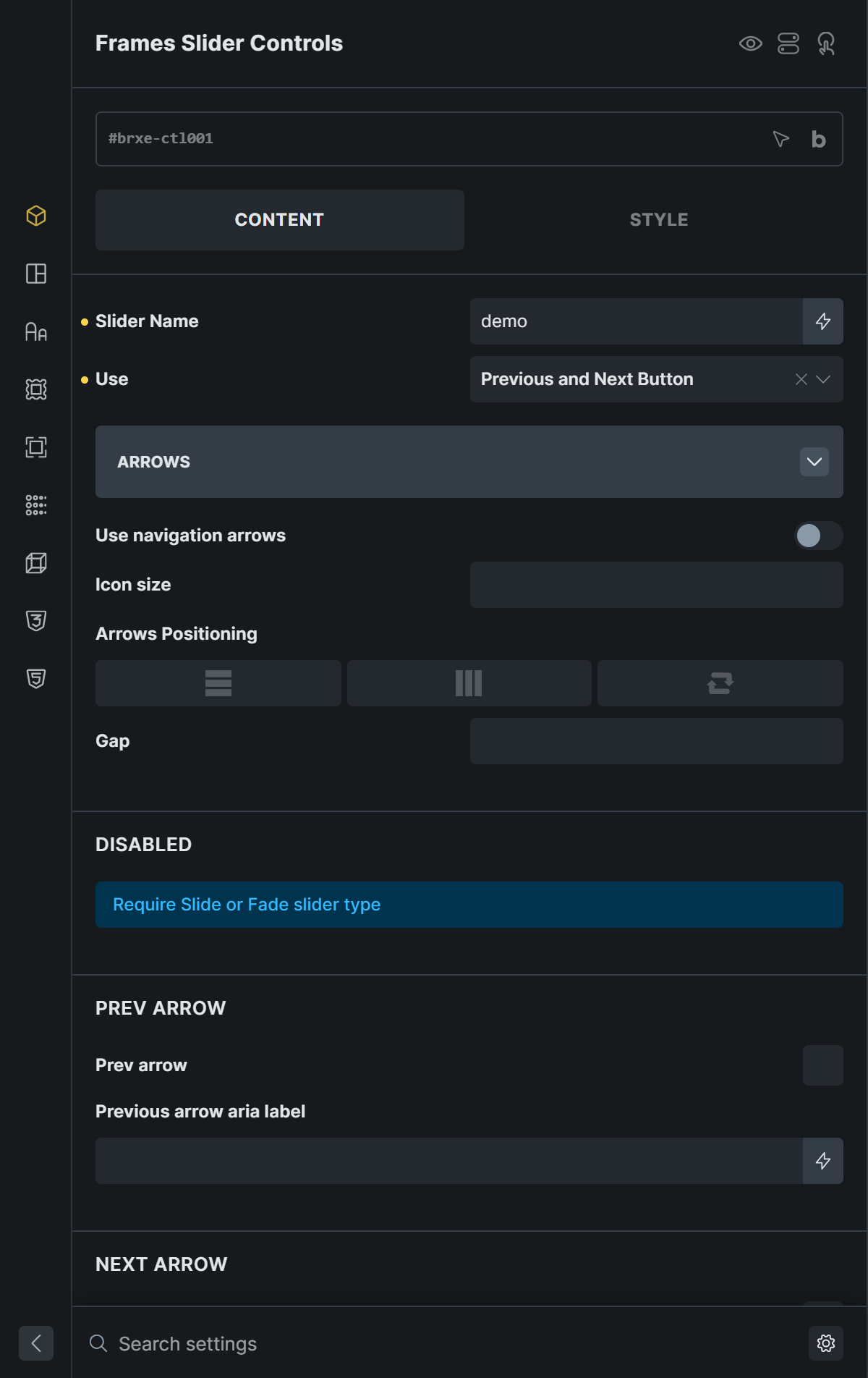
You can set the icon and its size, the size of the button, the background, border, and color, and the Gap between the two buttons. The Disabled group styles a button that cannot go any further. Each button has its own icon and its own aria-label (default “Previous slide” and “Next slide”).
Progress Bar
The Progress Bar group is shown for the progress bar.
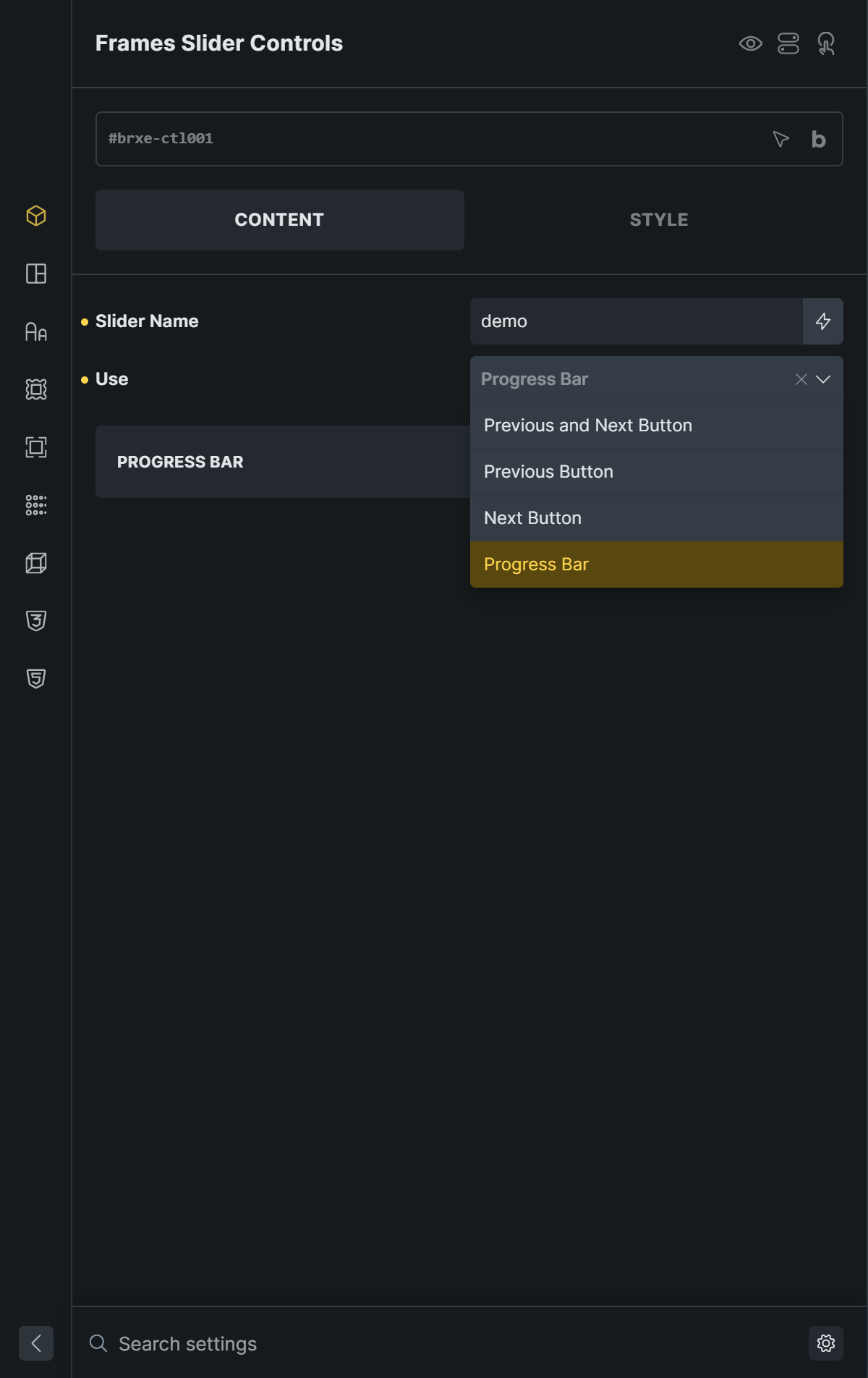
You can set the Color and Active Color, the Height and Width, and the Border. The Slide button aria label is the text read out for each step of the bar. %s is replaced by the slide number, for example “Go to slide 3”. Visitors can click a step of the bar to jump to that slide. The progress bar is static in the builder preview.
Tips
- Use the breakpoint icons next to the layout settings to show fewer slides on small screens, for example three slides on desktop, two on tablets, and one on phones.
- Slides in a row look best when they have the same height. Set Fixed Slide Height or give the slide content the same height.
- If you use more than one slider on a page, keep their sync names different from each other, unless you want them to move together.
- Splide.js has many more options than the builder shows. The Splide documentation at splidejs.com explains how each option works.