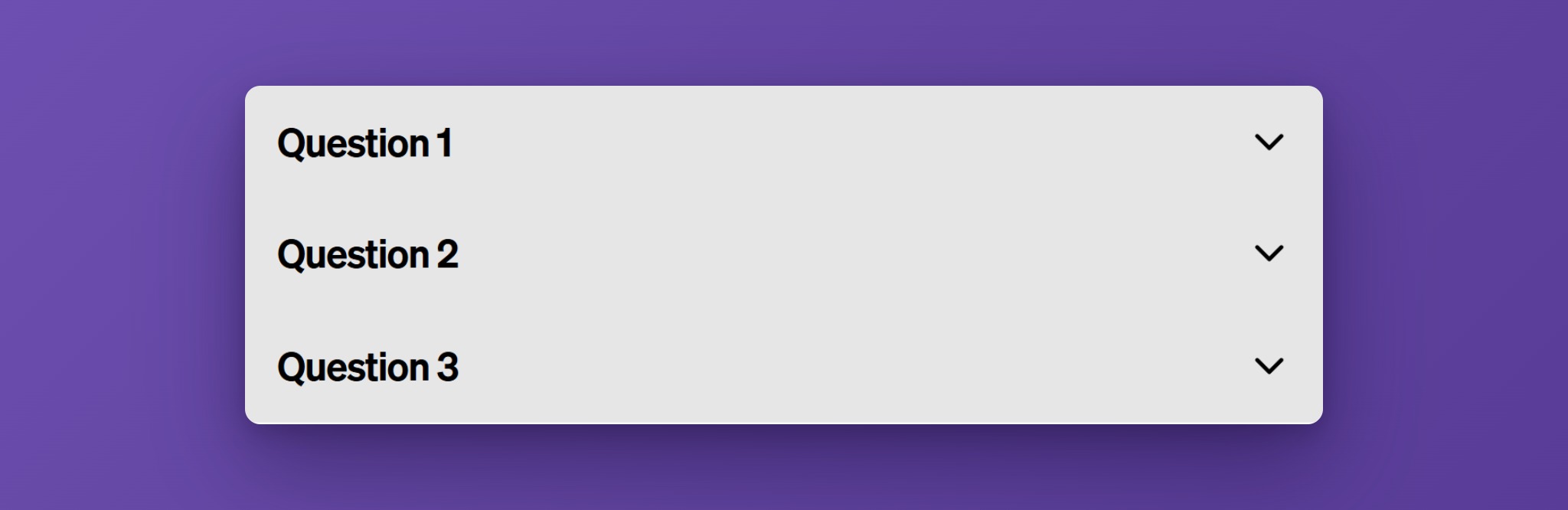
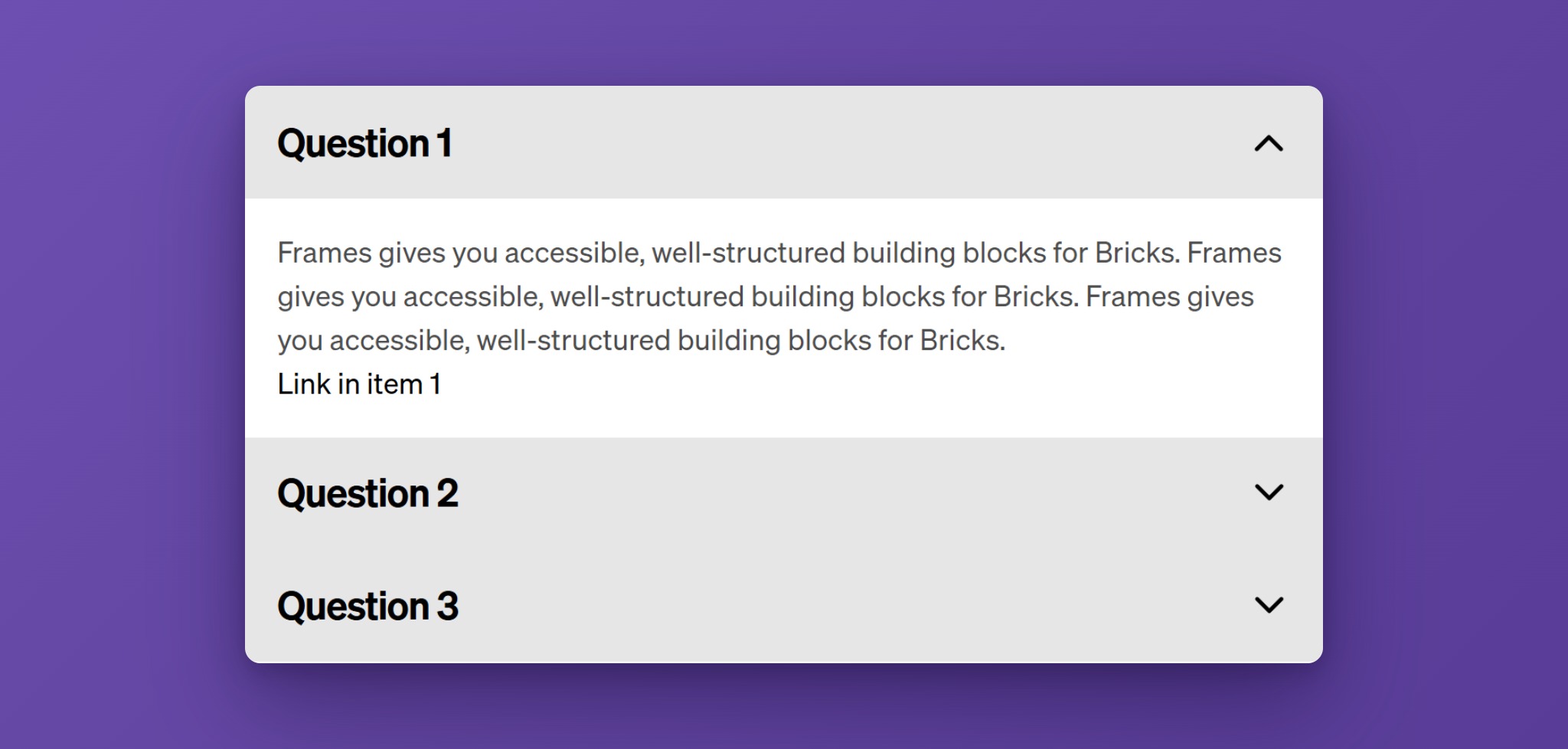
The Frames Accordion shows a list of headings that open and close their content. Only the headings are visible at first, so a long page stays short and easy to scan. Visitors open the items they care about.
Use it for FAQs, feature lists, spec sheets, or anywhere you want to hide detail until it is asked for. It works with the mouse, the keyboard, and screen readers, and it can add FAQ structured data for search engines.
Activating the Accordion
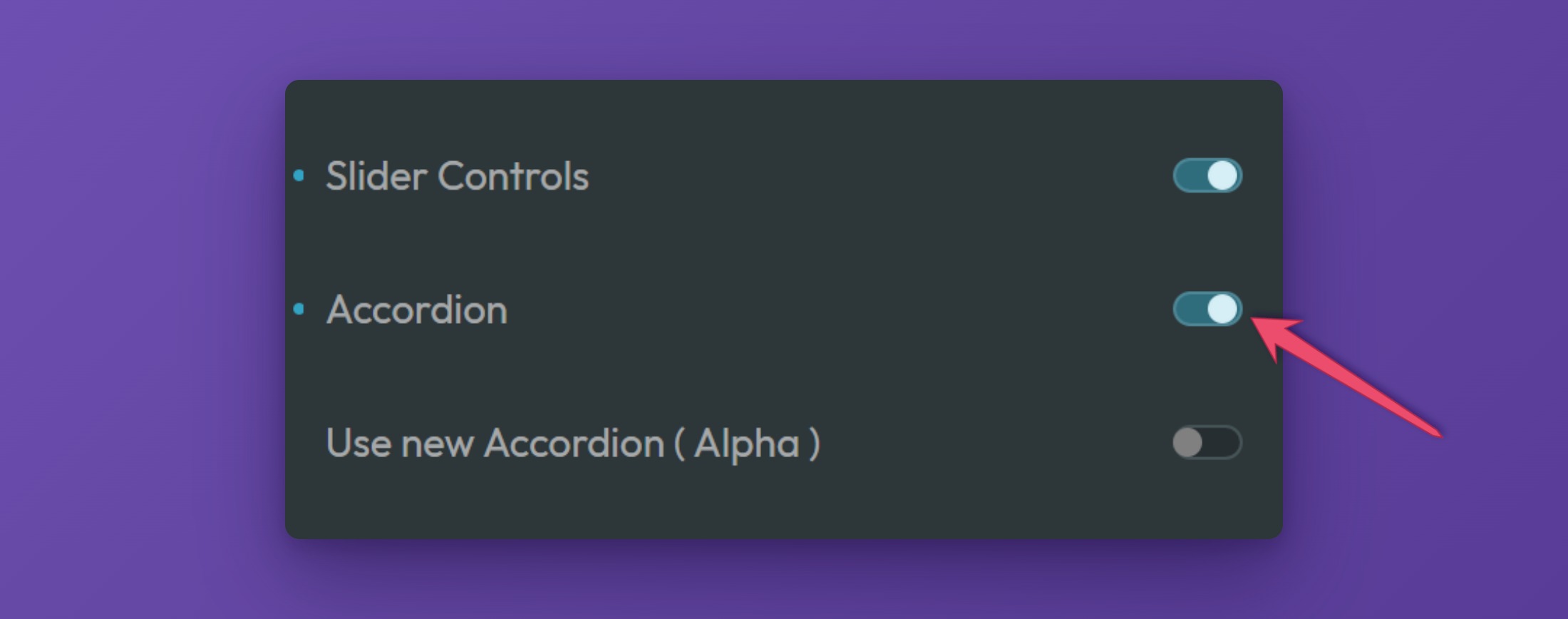
To use the Frames Accordion, make sure it is switched on in the ACSS dashboard. Open the dashboard in the builder, go to the Frames tab, and expand the Components panel. Switch on the Accordion. The dashboard also has a switch called Use new Accordion (Alpha). This page describes the standard Accordion, which is what you get when that switch is off.
Adding the Accordion to a Page (Bricks)
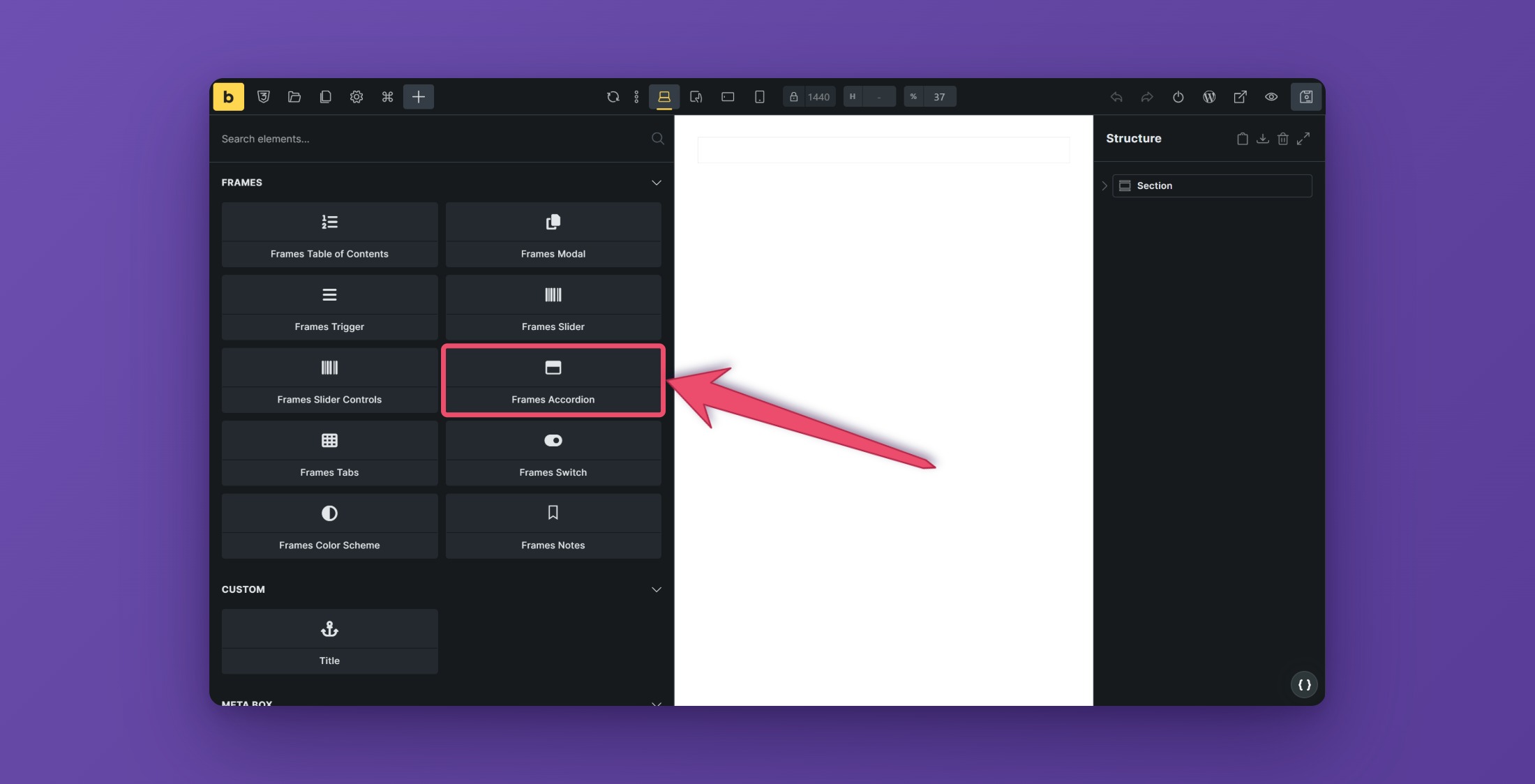
Open the builder, click the plus sign to add a new element, search for “Accordion”, and choose Frames Accordion from the Frames section. Bricks also ships a nestable Accordion with a similar name, so pick the one from Frames.
The new element comes with three items already filled in, each with a title, an arrow icon, and some content. You can place it anywhere on the page.
Structure
Every item in the Accordion has the same structure. You can see it in the Structure panel:
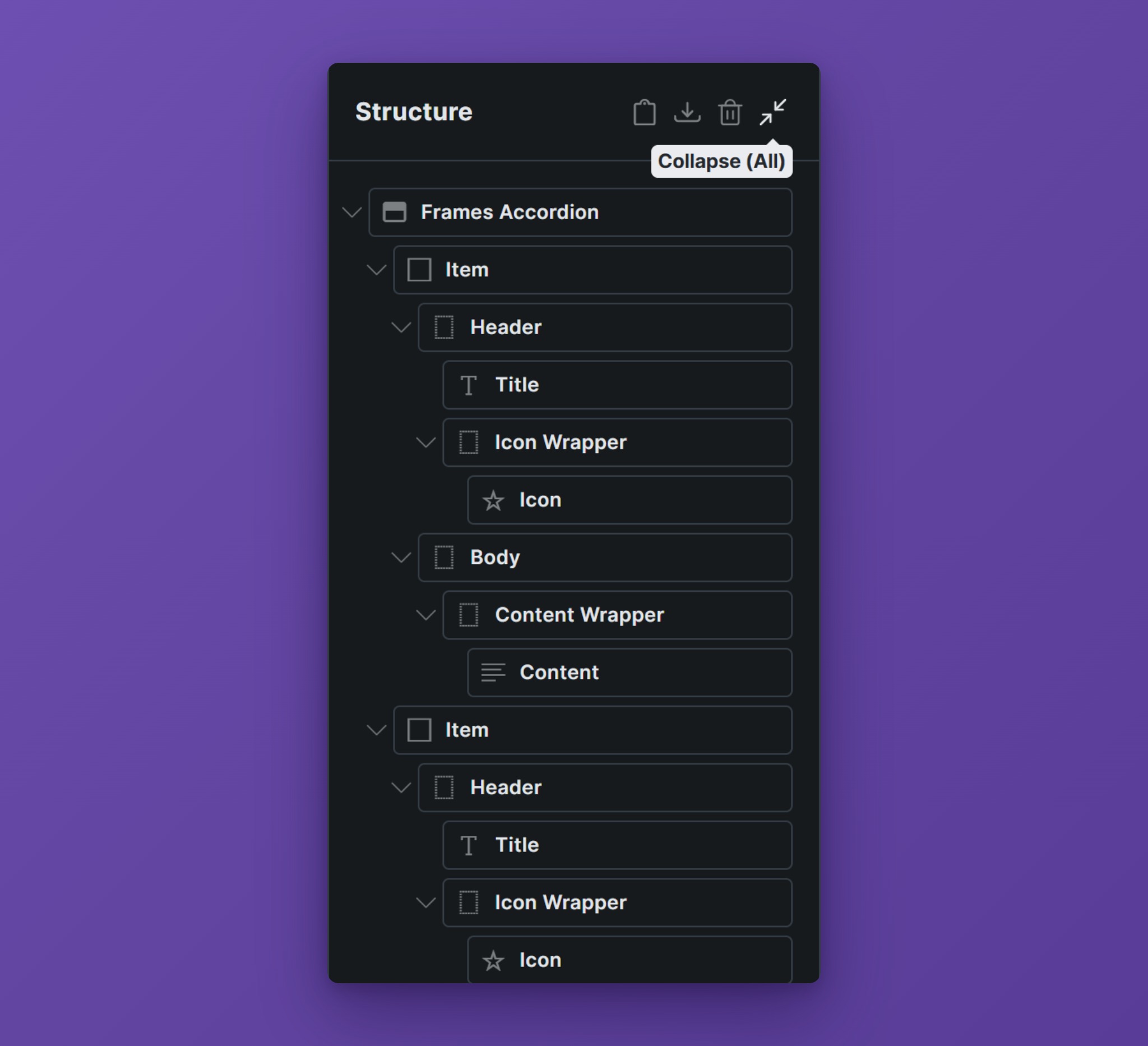
- Item is one question and answer pair. Add more items by duplicating an item.
- Header is the clickable bar. It contains the Title and the Icon Wrapper with the Icon.
- Body holds the content that opens and closes. Inside it, the Content Wrapper can contain anything: text, images, buttons, even other elements.
The Accordion itself is a list (ul) and each item is a list item (li).
Settings
Open the Settings panel of the element to find the behavior settings.
Default Behavior
These settings decide which items are open when the page loads.
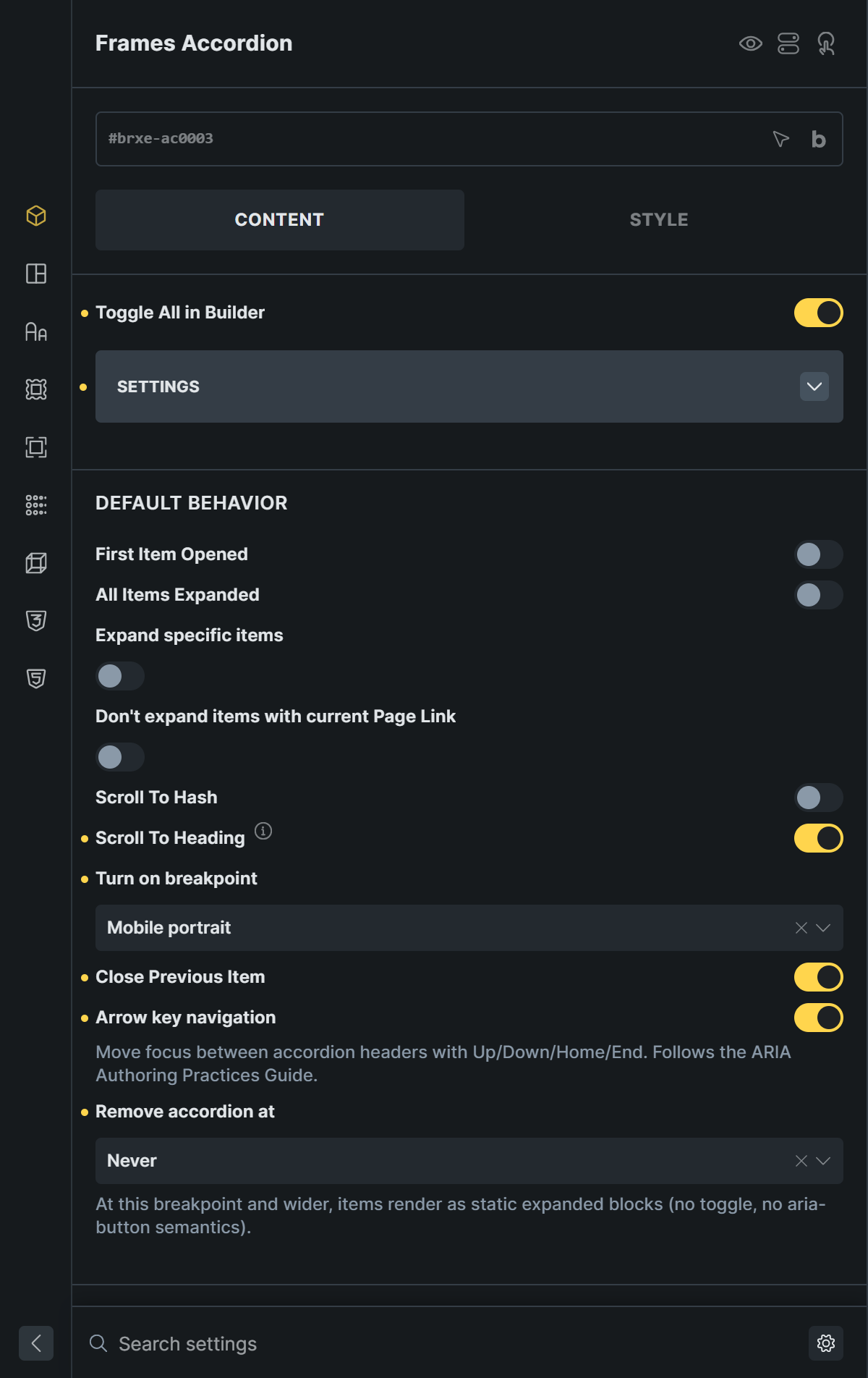
- First Item Opened opens the first item.
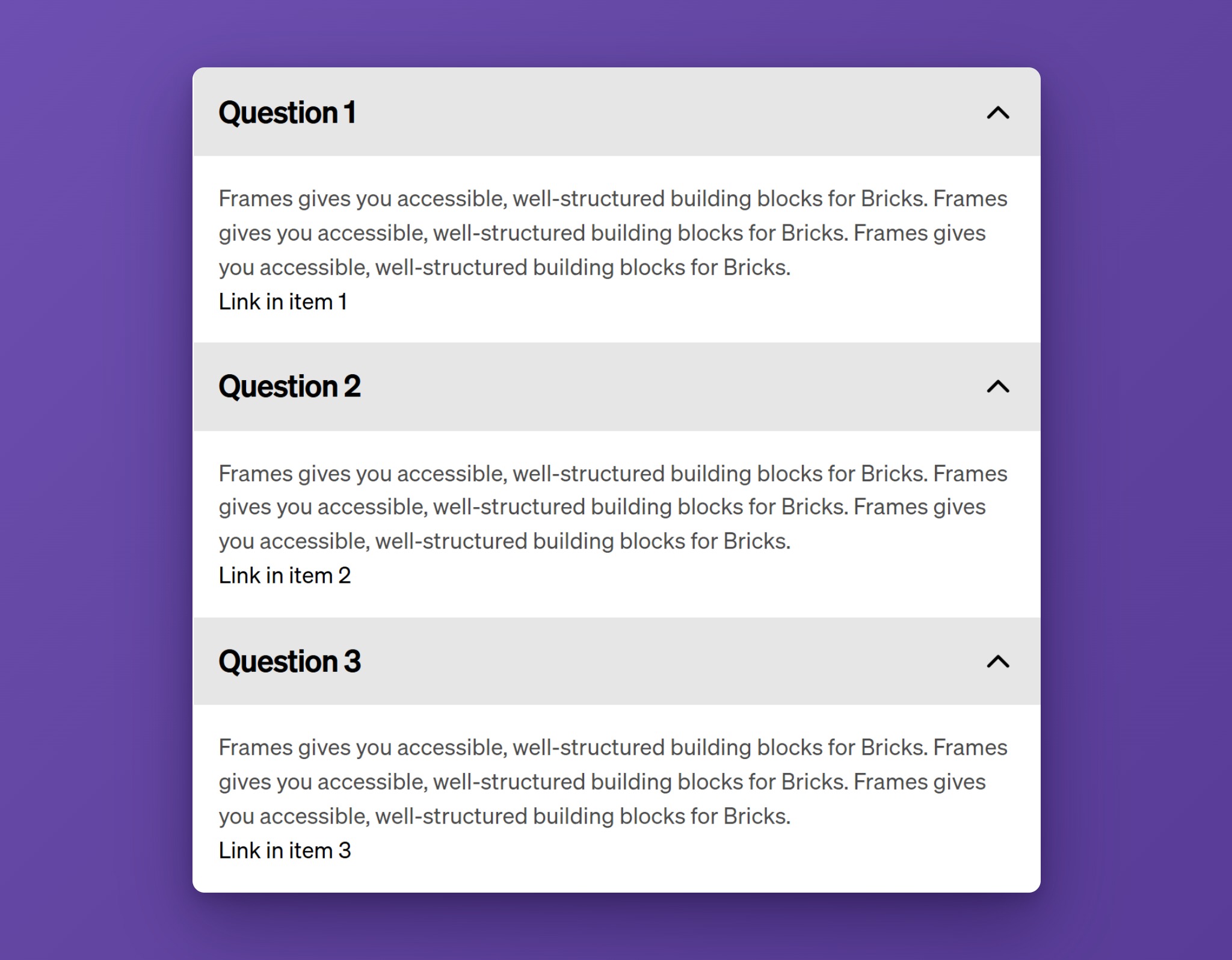
- All Items Expanded opens every item. Visitors can still close them.
- Expand specific items opens only the items you choose. After you switch it on, add the class
fr-accordion__item--expandedto each item that should start open. - Don’t expand items with current Page Link is for navigation menus. By default, an item that contains a link to the current page (a link with
aria-current="page") opens on its own, so visitors see where they are. Switch this on to turn that off.
Scroll To Hash
With Scroll To Hash on, an item opens and scrolls into view when its link is opened, for example yourpage.com/faq#question-2. The ID of an item is made from its title: the title “Question 2” becomes #question-2. When a visitor opens an item, the address in the browser changes to that link, so they can copy it and share it. Closing the item removes the hash again.
Scroll Offset sets how many pixels of space stay above the item when it scrolls into view. Use it when you have a fixed header.
Scroll To Heading
Scroll To Heading scrolls the opened item to the top of the screen when a visitor opens it. This is helpful on phones, where a long answer can push the title out of view. Turn on breakpoint sets the screen width up to which this happens. The default is Mobile portrait.
Close Previous Item
With Close Previous Item on (the default), opening an item closes the one that was open before, so only one item is open at a time. Switch it off to let visitors open as many items as they like.
Arrow key navigation
With Arrow key navigation on (the default), visitors who use the keyboard can move between the headers with the Up and Down arrows, jump to the first with Home, and to the last with End. After the last header, Down returns to the first. See the section on accessibility below.
Remove accordion at
Remove accordion at turns the Accordion into plain, fully open content from a chosen screen width and wider. Use it when you want an Accordion on phones but a normal list on desktop. Leave it on Never to keep the Accordion at every size.
The width is checked when the page loads. If a visitor resizes the window afterwards, the Accordion does not switch until the page is reloaded.
Expand Duration and Gap
Expand Duration is the time in milliseconds items take to open and close. The default is 300. Visitors who have reduced motion turned on in their system see the items open instantly.
Gap between items adds space between the items.
Additional Settings
- Tag sets the HTML tag of the Accordion:
ul(default),ol,div,section, or a custom tag. Pickolfor a numbered list. When you choose custom, a Custom Tag field appears. - Add Faq Schema adds structured data (FAQPage) for the questions and answers, so search engines can understand the content. Switch it on only when the Accordion really is a list of questions and answers. Use it once per page, because a page should have only one FAQPage.
Styling
The Head Styling and Body Styling groups of the Settings panel let you change how the Accordion looks, without writing CSS.
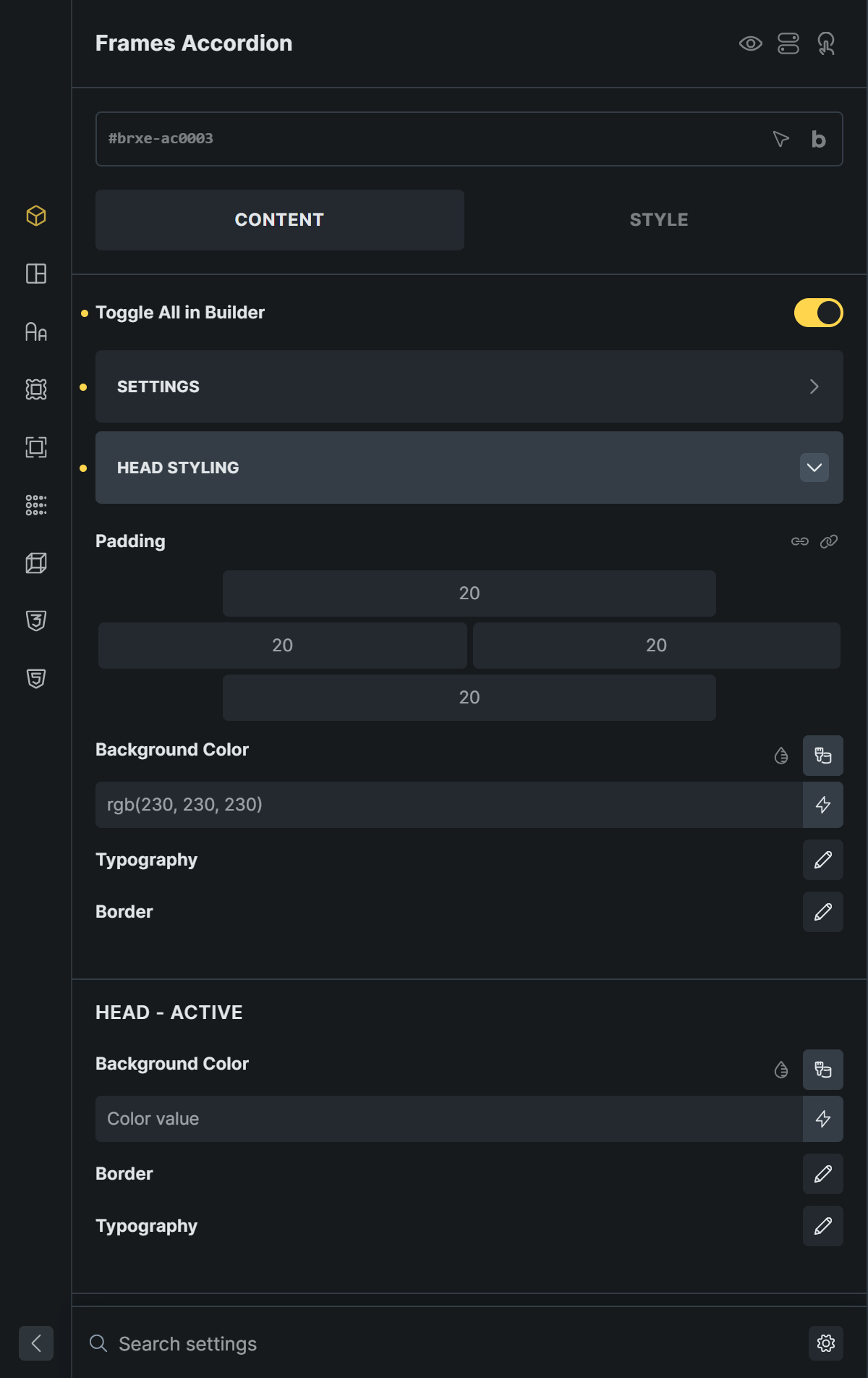
- Head Styling controls the padding, background color, typography, and border of every header.
- Head – Active sets the background, border, and typography of the header of the open item.
- Icon – Default sets the color, background, border, size, and wrapper size of the icon.
- Icon – Active sets the color, background, and border of the icon on the open item, and its Transform. By default the icon turns 180 degrees, so the arrow points up when an item is open.
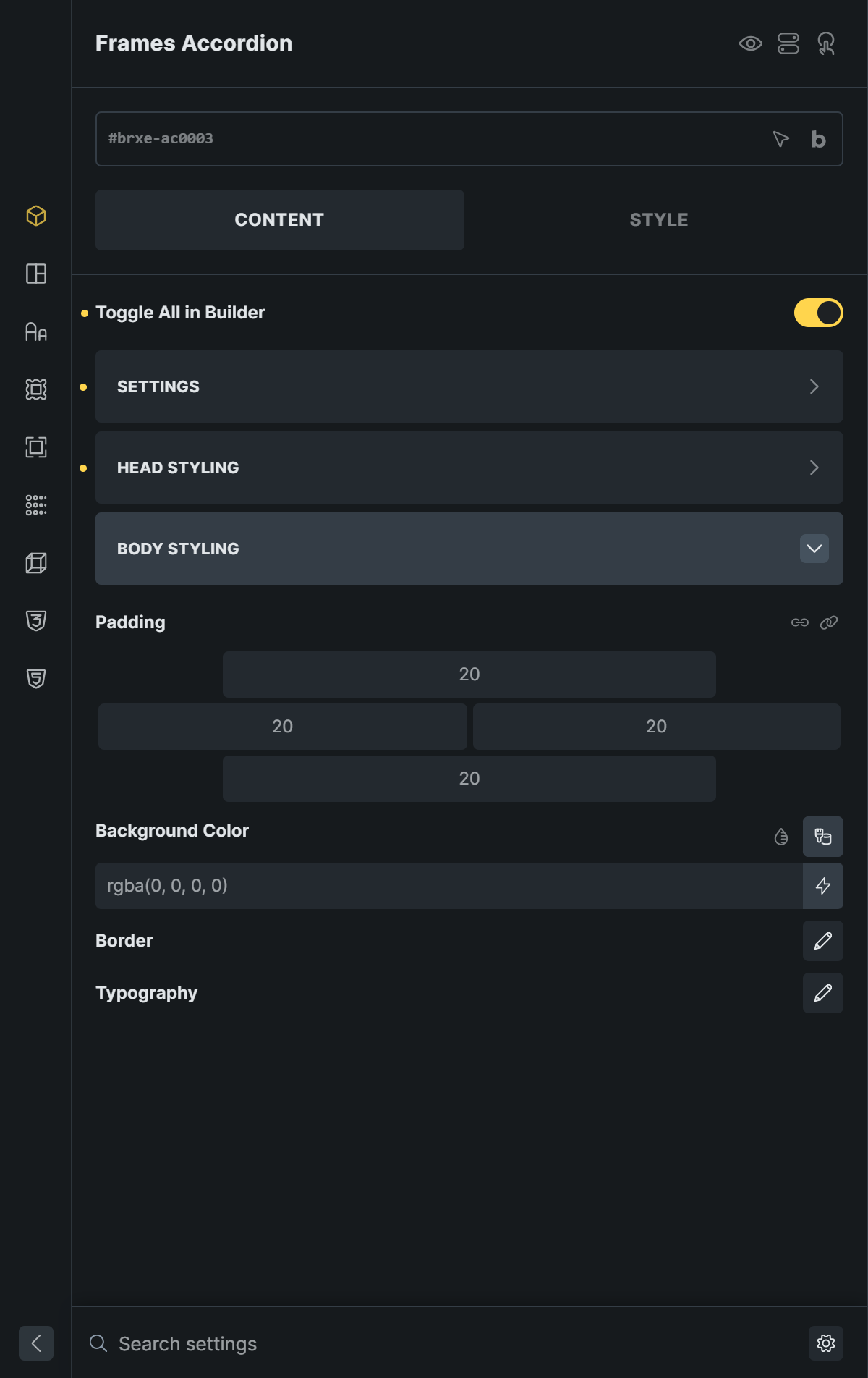
- Body Styling controls padding, background color, border, and typography of the content area.
You can also select any part in the Structure panel (Item, Header, Title, Icon, Body, Content Wrapper) and style it like any other Bricks element.
Accessibility
The Accordion follows the ARIA Authoring Practices Guide for accordions. These keys work:
| Key | Action |
|---|---|
| Tab, Shift+Tab | Move to the next or previous header. Links and buttons inside closed items are skipped. |
| Enter, Space | Open or close the focused item. |
| Down Arrow, Up Arrow | Move to the next or previous header. After the last header, Down Arrow goes back to the first. |
| Home, End | Move to the first or last header. |
The arrow keys, Home, and End work when Arrow key navigation is on, which it is by default.
Every header has the role of a button. Open items are announced with aria-expanded, and each header is linked to its content with aria-controls and aria-labelledby.
Tips
- Make the title short and clear. It is the only thing visitors see before they open an item.
- Give every Accordion on a page different titles. The IDs for links and for accessibility are made from the titles, so two accordions with the same titles produce the same IDs.
- For long answers, turn on Scroll To Heading so the title stays in view on phones.